Development Environment
The Raspberry Controller builds to an executable file, and it only compiles on Linux. However since it needs to be executed on Raspberry the best way is to compile the application on the hardware it is executed on.
IDE
The build system that the project uses is CMake. The minimum required CMake
version is 3.7.Technically any development environment works as long as it can
use CMake to build however the suggested IDE is
CLion. It has great code completion, static
code analysis features and supports remote development which is really useful
for developing for Raspberry PI environment.
Setting up CLion for Raspberry PI build
First of all it's necessary that all the tools are available on the Raspberry PI itself.
In order to make them available run the following commands on the Raspberry:
sudo apt-get update- This updates the system's package listsudo apt-get full-upgrade- This upgrades all the packages and their dependencies to their latest versionsudo apt-get install cmake- This install the latest version of CMake build systemsudo apt-get build-essential- This installs a lot of libraries and the latest C/C++ compiler that is available.sudo apt-get install libcurl4-openssl-dev- Makes sure the curl libraries are available
Raspberry PI uses an ARM processor so if the library is expected to work on that system it should be also compiled there. However it's not a good idea to try to install CLion on a Raspberry because it's not powerful enough to make it work. A good solution is to setup remote development which means that the development happens on a personal computer but the building process runs on the Raspberry PI. CLion has a great support for this workflow. Jetbrains has a guide setting up the remote development. The suggested workflow is the Full Remote mode but every other should work that seems convenient. In Full Remote mode, the source files are synchronized from local to the Raspberry and they are ready on the target machine when building is started.
To setup the whole project to work you first need to setup the core project for remote development. Create a new toolchain next to the local toolchain you already made for the local development.
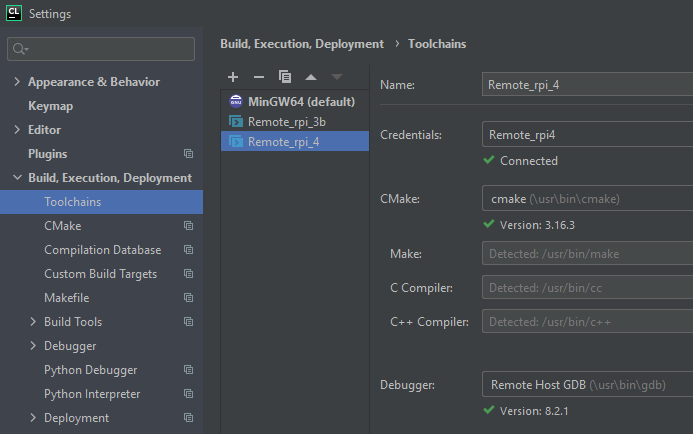
If you done everything well the tools will be automatically detected by CLion.
You also need to create a separate CMake environment next to the already existing one.
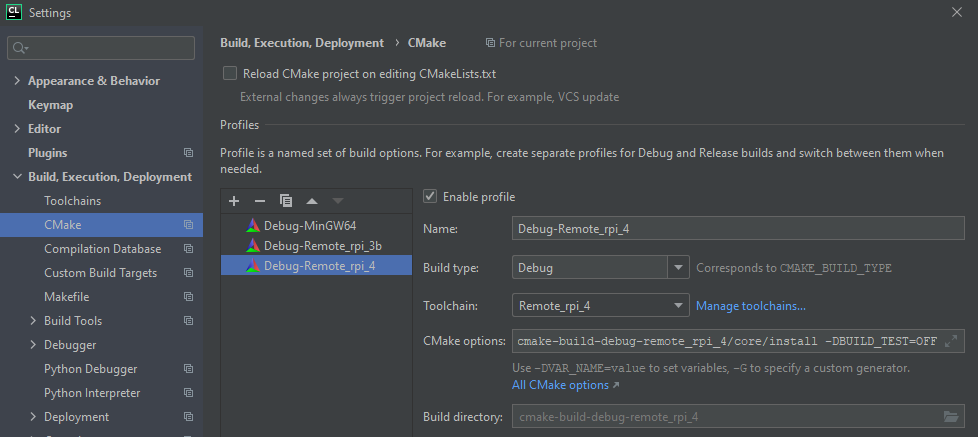
Make sure to select the previously selected toolchain. Note that you are going to have to pass some CMake options but leave this step for a little bit later.
First you should set the deployment path for this environment. This is going to be the path the project will be copied on the Raspberry.
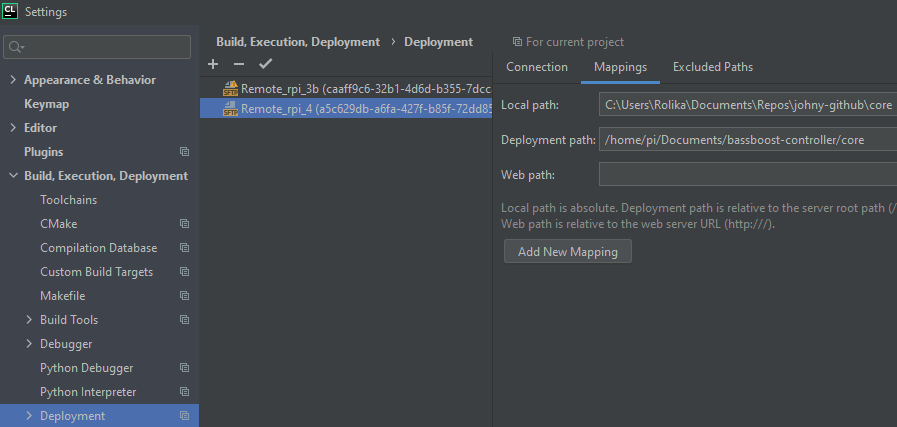
You need to make sure to provide a valid path for the Deployment Path. This
could be anywhere the user that you gave credentials to has write permission.
Note that if you choose a path in the /tmp folder it will be always deleted
when the device is restarted. It's not a problem but might be a little inconvenient.
Once you click OK the CMake project will reload and the files will be automatically copied to the Raspberry. If you every need to start the copy process manually you can do it by manually reloading the project.
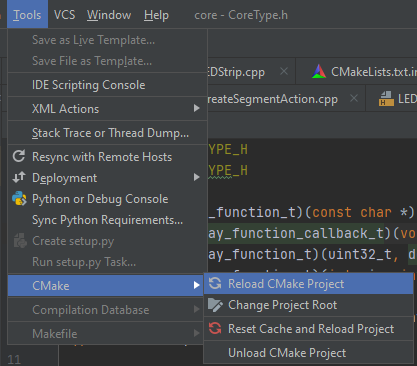
If any strange behavior occurs select the Reset Cache and Reload Project
instead of just simply reloading. If that also doesn't solve the issue try to
delete the project manually from the Raspberry and make a fresh upload.
Once it's done you need to create the Toolchains and CMake environments in the
Raspberry Controller project as well. When you are making the CMake environments
you also need to set the CORE_PATH environment variable and provide the path
that you previously set in the core project when dealing with the Deployment
Path.

You also need to setup the Deployment Path for this environment as well. Make sure this is a different path that you provided for the core.

One last step is to setup the CMake options for the core project's CMake environments. You had to wait until this point because the value depends on the Deployment Path you provide for the Rasperry Controller environment in the previous step.

You need to add 2 arguments:
-DCMAKE_INSTALL_PREFIX=<path you just chose for the Deployment Path>/<cmake
environment>/core/install
-DBUILD_TEST=OFF
An example for the CMAKE_INSTALL_PREFIX with the above configuration would be
this:
/home/pi/Documents/bassboost-controller/rpi4-app/cmake-build-debug-remote_rpi_4/core/install
This last step makes sure that when you update the core project you install the new library version at the right place. Once you click OK the CMake projects will be reloaded and this project is also copied to the device.
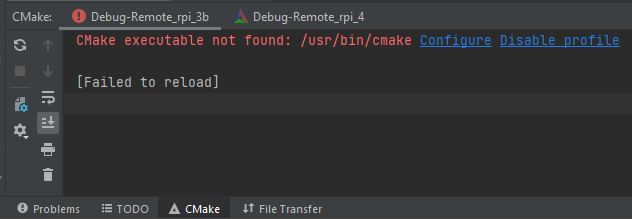
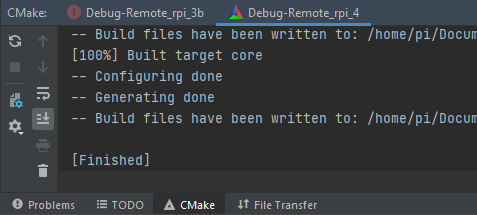
The above pictures illustrate that it is also possible to develop on multiple Raspberry PI devices at the same time by creating multiple Toolchains and CMake environments with different names and paths. You can check which environments loaded successfully by checking their CMake status. In case a Raspberry is not turned on the CMake load will fail but it's not a problem because if you turn it on and reload the project everything will work
Failed to load:
Success:
Start the application on Raspberry PI
You can choose any environment that successfully loaded next to the build button.

Before you start to build or run the application you need to add administrative privileges for CLion on the device that you run the application on. This is because the application needs to write files that needs root access.
You can do that by selecting the environment then clicking on Edit configurations and finally check the Run with Administrator privileges checkbox.

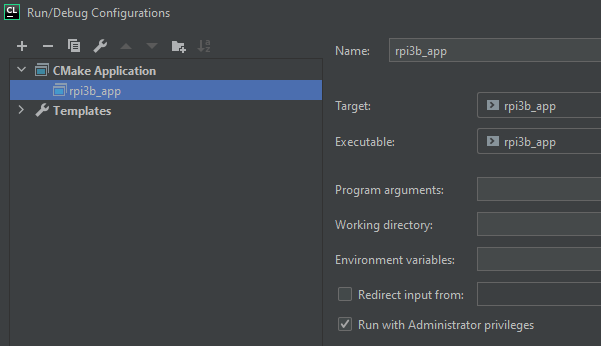
Once you are done you can click on the Run or Debug button and the application start on the selected device. You don't need to worry about the dependencies. They are downloaded and built during the CMake load phase and linked in the build phase.
Install Core updates
Most of the time a change needs to be done in the core library. To be able to
test this change on the Raspberry the library needs to be updated. First of all
you are going to need the remote development toolchain in the core project as
well. After that's done, to install the updates implement the changes and in the
core library project select Build > Install.

This will build the library and copy it to the right place along with the public
headers. You can check the install result in the Messages window.
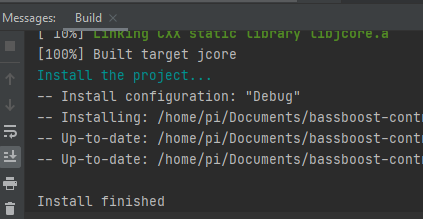
After that you just need to rebuild the Raspberry project and it will link the freshly built library to the executable.
Troubleshooting
- It might be possible that you receive an error like this:
No download info given for 'core' and its source directory:

   /home/pi/Documents/bassboost-controller/core

  is not an existing non-empty directory.  Please specify one of:

   * SOURCE_DIR with an existing non-empty directory
   * DOWNLOAD_COMMAND
   * URL
   * GIT_REPOSITORY
   * SVN_REPOSITORY
   * HG_REPOSITORY
   * CVS_REPOSITORY and CVS_MODULE
This error might happen in case the core project is not copied on the device and the Raspberry controller project starts to resolve the dependencies. Since it does not find the core project this error occurs. This could be solved by waiting until the core project is copied or if it does not start then start it manually by reloading the CMake project. Once it finished Reload the CMake project in the Raspberry controller project.
This error could also happen in case github is not available because it downloads other dependencies from Github. The easiest solution for this is to wait until Github is available again and reload the CMake project.